---
title: HTMLで簡単実装!A-Frameで始めるWebXR開発
tags:
author: [Takashi Yoshinaga](https://www.docswell.com/user/Tks_Yoshinaga)
site: [Docswell](https://www.docswell.com/)
thumbnail: https://bcdn.docswell.com/page/8EDY42X4EG.jpg?width=480
description: HTMLで簡単実装!A-Frameで始めるWebXR開発 by Takashi Yoshinaga
published: June 29, 24
canonical: https://www.docswell.com/s/Tks_Yoshinaga/KDEY76-a-frame-webxr
---
# Page. 1

HTMLで簡単実装!
A-Frameで始めるWebXR開発
# Page. 2
まずは素材のダウンロード
https://github.com/TakashiYoshinaga/ARFukuoka/raw/main/AFrame_20240629/Sample.zip
# Page. 3
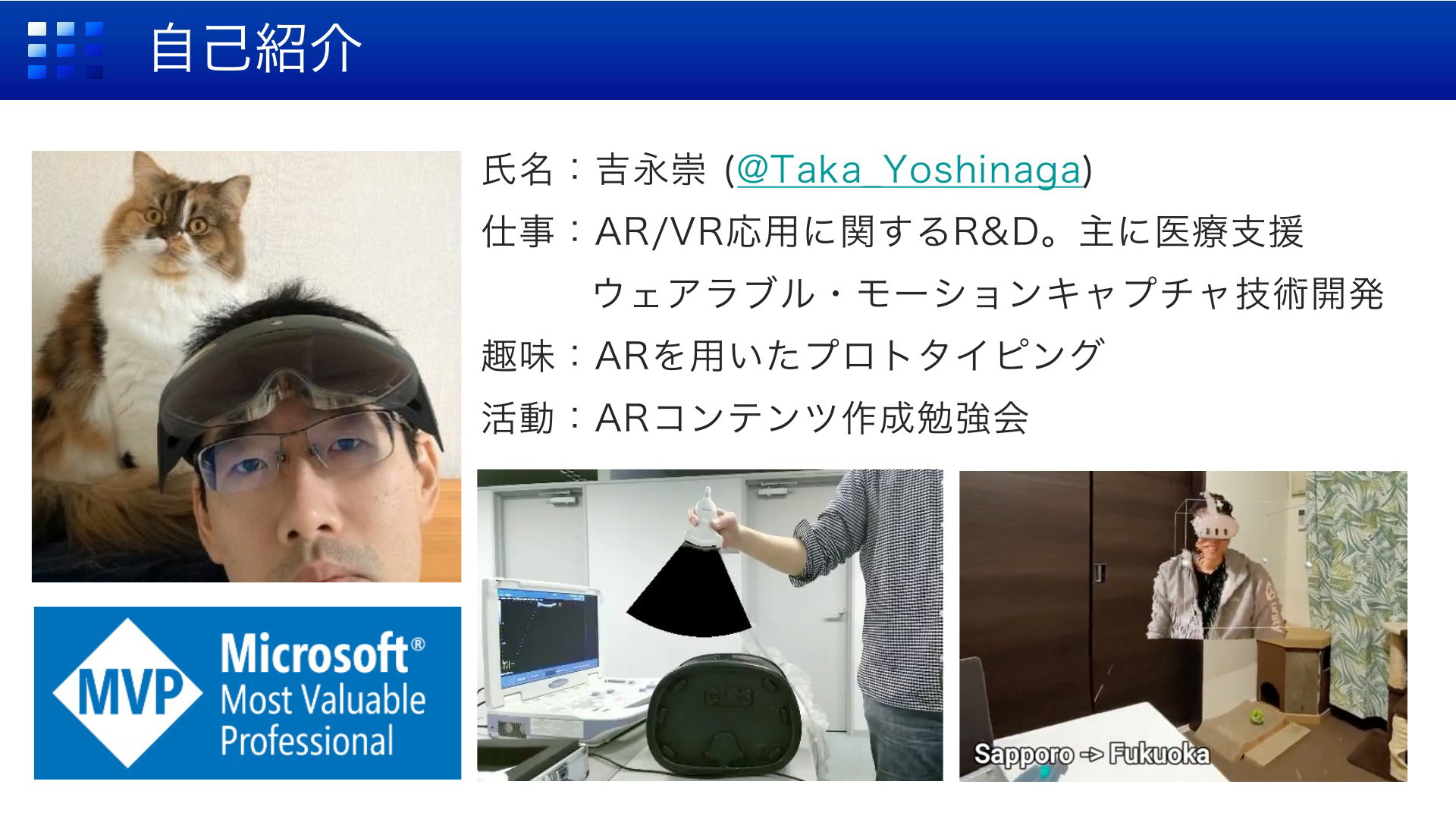
自己紹介
氏名:吉永崇 (@Taka̲Yoshinaga)
仕事:AR/VR応用に関するR&D。主に医療支援
ウェアラブル・モーションキャプチャ技術開発
趣味:ARを用いたプロトタイピング
活動:ARコンテンツ作成勉強会
# Page. 4
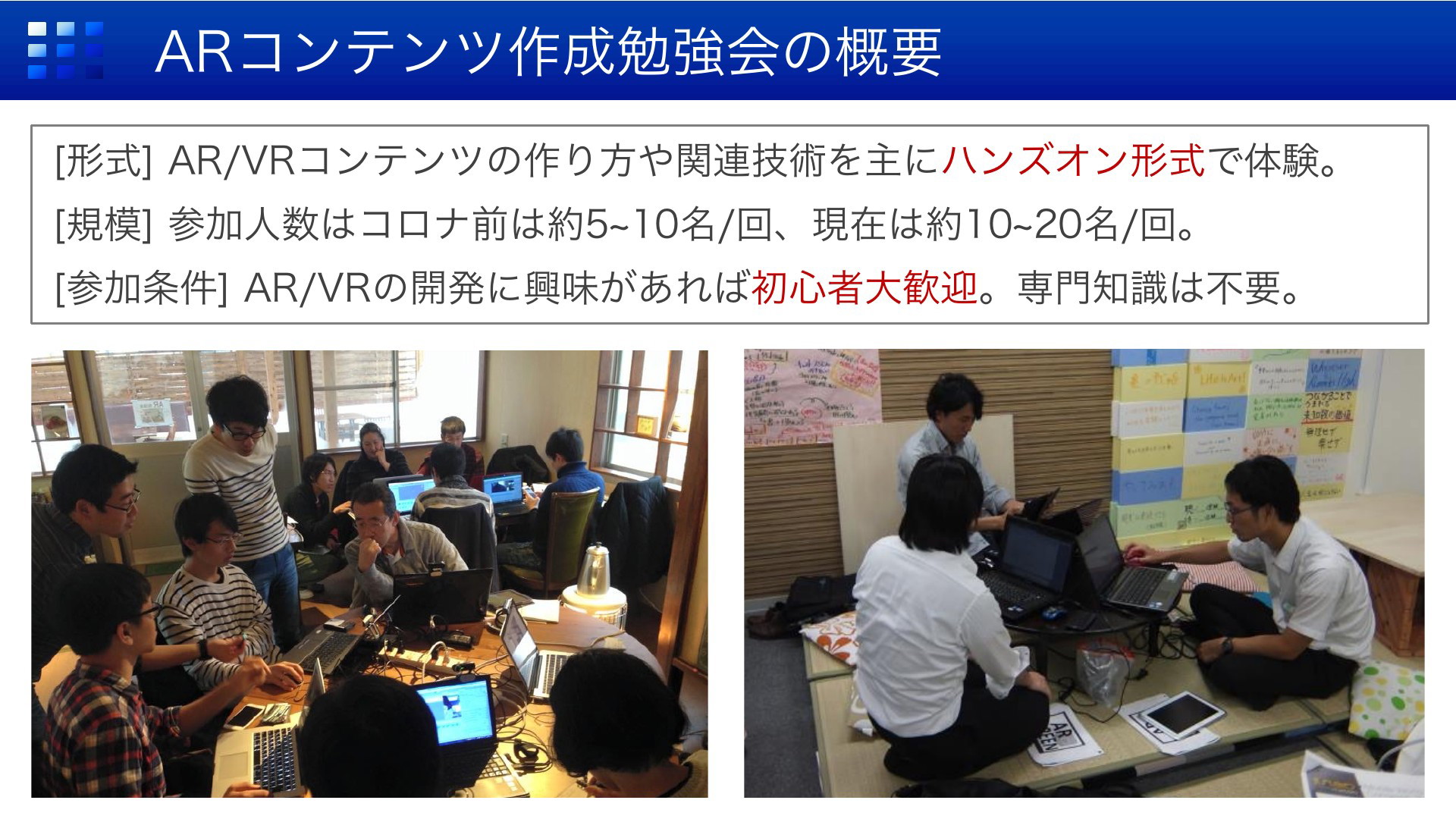
ARコンテンツ作成勉強会の概要
[形式] AR/VRコンテンツの作り方や関連技術を主にハンズオン形式で体験。
[規模] 参加人数はコロナ前は約5~10名/回、現在は約10~20名/回。
[参加条件] AR/VRの開発に興味があれば初心者大歓迎。専門知識は不要。
# Page. 5
ハッシュタグ
#tryAR
#aframevr
# Page. 6
本題に入ります
# Page. 7
A-Frameの概要
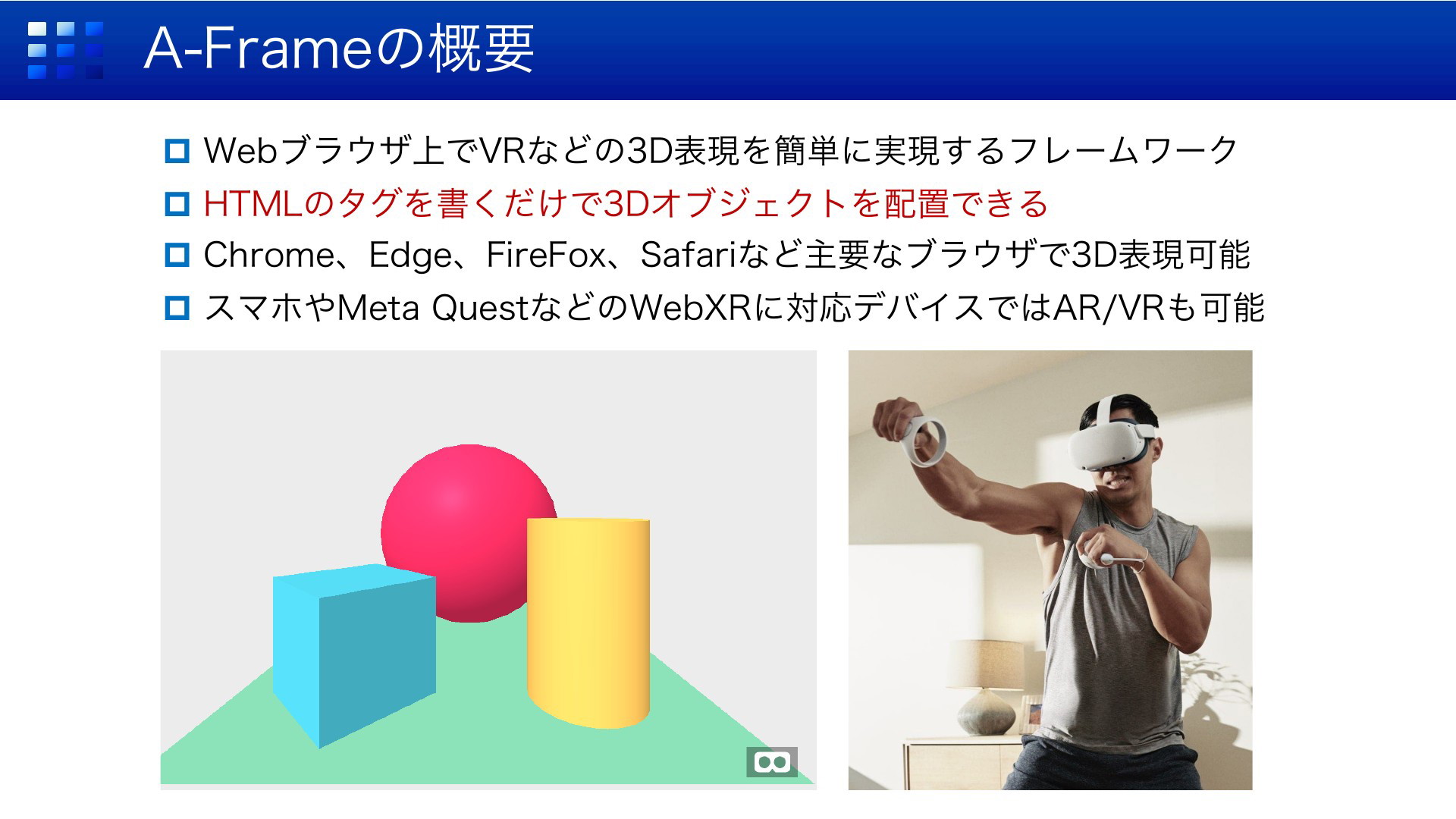
p Webブラウザ上でVRなどの3D表現を簡単に実現するフレームワーク
p HTMLのタグを書くだけで3Dオブジェクトを配置できる
p Chrome、Edge、FireFox、Safariなど主要なブラウザで3D表現可能
p スマホやMeta QuestなどのWebXRに対応デバイスではAR/VRも可能
# Page. 8
まずは体験
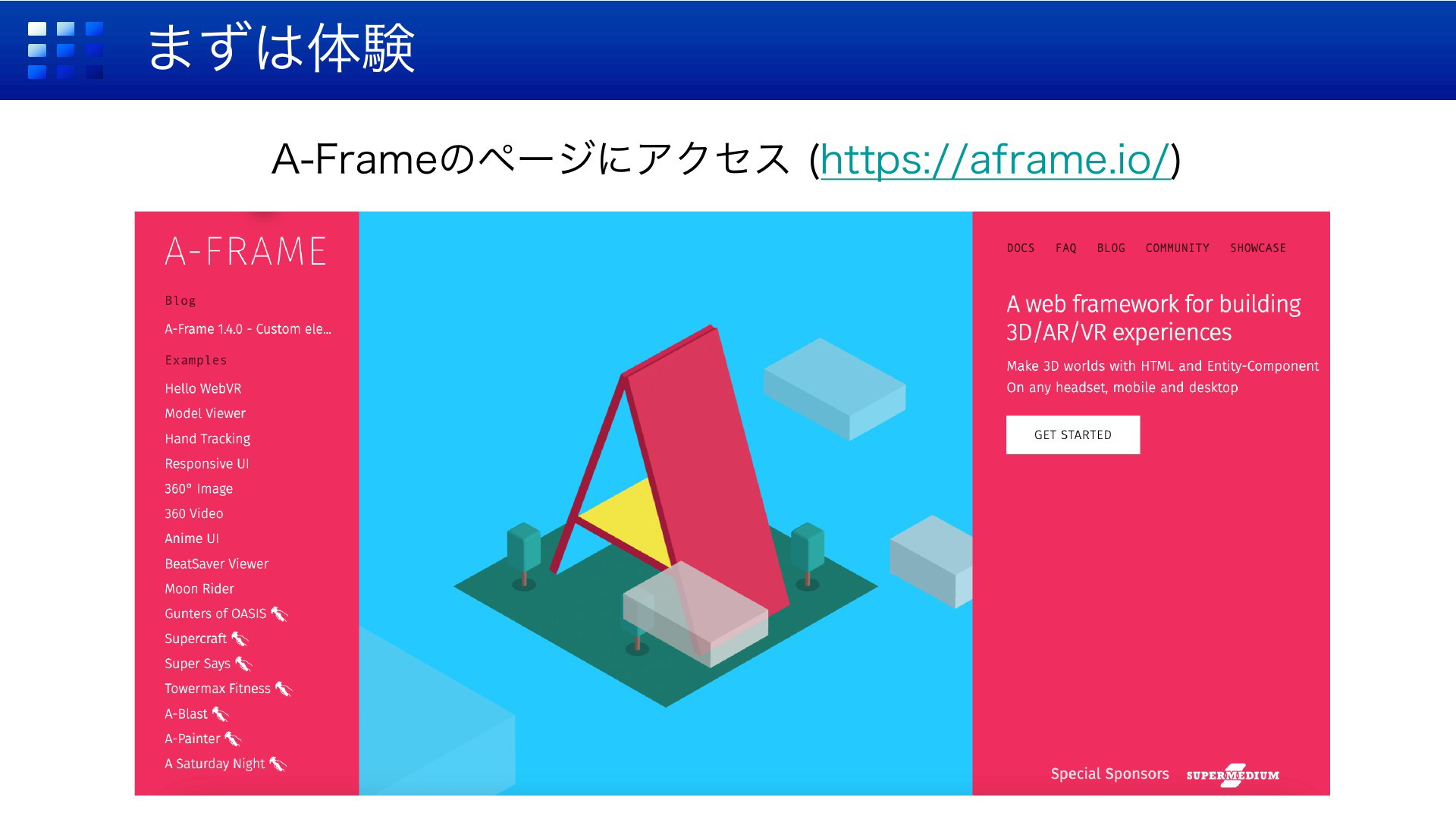
A-Frameのページにアクセス (https://aframe.io/)
# Page. 9

まずは体験
ページの左側にサンプルがあります
サンプル
# Page. 10

まずは体験
基本サンプル Hello WebVRをクリック
Hello WebVR
# Page. 11

まずは体験
基本サンプル Hello WebVRをクリック
画面をクリック
p 回転:マウスでドラッグ
p 左右:[←][→]キー
p 前後:[↑][↓]キー
※前後左右は自分がどちらに動くかで考える
# Page. 12

今⽇のゴール
https://www.youtube.com/watch?v=aAvvqKM0BVI
# Page. 13

ハンズオン手順
Step1: 公式サンプルを使ってA-Frameの基本操作を覚える
Step2: CGの見た目の調整やアニメーションの設定などを行い
簡易VRコンテンツを作成
Step3: ハンドマニピュレーションの利用とWebAR対応
# Page. 14

必要なもの
p Webブラウザ → コンテンツの体験や動作確認
p テキストエディタ → HTMLやjavascriptの記述
p Webサーバー → コンテンツの公開
サーバーに関して今回は・・・
p Glitchを利用
https://glitch.com/
u GitHubやGoogleのアカウントがあればOK
u サーバーとエディタの両方を無料で提供
この資料ではGlitchの使用を前提に説明します
# Page. 15

基本サンプルのコード
Hello WebVRのコードを取得
GET STARTED
# Page. 16

基本サンプルのコードの複製
Hello WebVR
Hello WebVRに関する記述 (たったこれだけ!)
# Page. 17

基本サンプルのコードの複製
Glitchユーザーはremix the starter example on Glitchをクリック
※Glitch以外の環境ではサンプルのHTMLをコピーし、自作のHTMLファイルにペースト
Click
# Page. 18

基本サンプルのコードの複製
Remix your ownをクリック
Click
# Page. 19

基本サンプルのコードの確認
index.htmlをクリックし、コードが表示されることを確認
Click
# Page. 20

画面の構成
index.htmlをクリックし、コードが表示されることを確認
ファイルリスト
エディタ
プレビュー
# Page. 21

補足
# Page. 22

補足:プレビューが表示されない場合
ブラウザの種類によってはプレビューが表示されない場合があります
ファイルリスト
エディタ
# Page. 23

補足:プレビューが表示されない場合
画面下方のPREVIEWボタンをクリック
Click
# Page. 24

補足:プレビューが表示されない場合
Open preview paneをクリック
Click
# Page. 25

補足おわり
# Page. 26

ソースの確認
<html>
<head>
<script src="https://aframe.io/releases/1.6.0/aframe.min.js"></script>
</head>
<body>
<a-scene>
表示するオブジェクトや背景の設定をここに記述
</a-scene>
</body>
</html>
p <head> と </head>の間でA-Frameの読み込みを行う
p <a-scene>と</a-scene>の間に描画に関する記述をする
# Page. 27

ソースの確認
<a-scene> オブジェクト
位置
回転
色
<a-box position="-1 0.5 -3" rotation="0 45 0" color="#4CC3D9"></a-box>
<a-sphere position="0 1.25 -5" radius="1.25" color="#EF2D5E"></a-sphere>
<a-cylinder position="1 0.75 -3" radius="0.5" height="1.5" color="#FFC65D"></a-cylinder>
<a-plane position="0 0 -4" rotation="-90 0 0" width="4" height="4" color="#7BC8A4"></a-plane>
<a-sky color="#ECECEC"></a-sky>
</a-scene>
p 基本図形はa-xxxタグで提供されている
p 詳しくは公式ドキュメントを参照
https://aframe.io/docs/1.6.0/primitives
/a-box.html(例:a-boxの詳細)
# Page. 28

アレンジしよう (まだやらなくてOK)
タグ内の各パラメータを編集してCGの見た目を調整することができる
p position(位置):x y zの順にスペースで区切って指定
x y z座標
# Page. 29

アレンジしよう (まだやらなくてOK)
タグ内の各パラメータを編集してCGの見た目を調整することができる
p position(位置):x y zの順にスペースで区切って指定
p rotation(傾き):各軸を中心とした回転で表現
p color(色):カラーコード等で指定
p 他にも図形によって各種設定項目がある
(0 1.25 -5)
【設定項目の例】
radius(半径)
width(幅)
Y
height(高さ)
depth(奥行)
Z
原点
X
src (画像など)
# Page. 30

とりあえず習うより慣れろ
ということで自由にいじってみましょう
# Page. 31

HTML編集に慣れよう
[編集例]
<a-scene>
角度
<a-box position="-1 0.5 -3" rotation="0 45 45" color="#4CC3D9"> </a-box>
<a-sphere position=“0 1.25 -5” radius=“1.25” color=“#EF2D5E”>
</a-sphere>
高さ
<a-cylinder position="1 0.75 -3" radius="0.5" height="0.2" color="#FFC65D"></a-cylinder>
<a-plane position="0 0 -4" rotation="-90 0 0" width="4" height="4" color="#7BC8A4"></a-plane>
<a-entity position="0 1.5 -2" scale="5 5 5" text="value: tryAR; align: center"></a-entity>
<a-sky color="#555555"></a-sky>
</a-scene>
テキスト
色
p a-entityはUnityでいうところのemptyな(空っぽの)
GameObjectという理解でOK
p コンポーネント(先ほどまでパラメータと表現)を
追加して独自のオブジェクトを自作できる
Lesson01
# Page. 32

ハンズオン手順
Step1: 公式サンプルを使ってA-Frameの基本操作を覚える
Step2: CGの見た目の調整やアニメーションの設定などを行い
簡易VRコンテンツを作成
Step3: ハンドマニピュレーションの利用とWebAR対応
# Page. 33

その前に
# Page. 34

現在のタブを閉じる
タブを閉じる
# Page. 35

VRコンテンツ作りの準備
Hello WebVRのコードを取得
GET STARTED
# Page. 36

基本サンプルのコードの複製
Glitchユーザーはremix the starter example on Glitchをクリック
※Glitch以外の環境ではサンプルのHTMLをコピーし、自作のHTMLファイルにペースト
Click
# Page. 37

基本サンプルのコードの複製
Remix your ownをクリック
Click
# Page. 38

index.htmlの表示
index.html
# Page. 39

不要なオブジェクトの削除
<a-scene>
<a-box position="-1 0.5 -3" rotation="0 45 0" color="#4CC3D9"></a-box>
<a-sphere position="0 1.25 -5" radius="1.25" color="#EF2D5E"></a-sphere>
<a-cylinder position="1 0.75 -3" radius="0.5" height="1.5" color="#FFC65D"></a-cylinder>
<a-plane position="0 0 -4" rotation="-90 0 0" width="4" height="4" color="#7BC8A4"></a-plane>
<a-sky color="#ECECEC"></a-sky>
</a-scene>
p HTMLの記述の中から不要なタグを削除す
るだけでオブジェクトが削除される
p このあとの演習の準備のために、
a-sphereとa-skyのみを残して削除
Lesson02
# Page. 40

外見を整える
単色で塗りつぶすのではなくテクスチャをオブジェクトの表面に表示
# Page. 41

外見を整える
テクスチャ画像を用意して、オブジェクトの表面に貼り付ける
3Dオブジェクト
テクスチャ画像
# Page. 42

テクスチャ画像をアップロード
Glitchのエディタページにの画面左の列に表示されているAssetsをクリック
続いて、画面上方の[UPLOAD AN ASSET]をクリック
①Assets
補足:
ここに画像ファイルを直接
ドラッグ&ドロップでもOK
② UPLOAD AN ASSET
# Page. 43

テクスチャ画像をアップロード
Sampleフォルダ内のテクスチャ画像earth.jpgを開く
earth.jpg
# Page. 44

テクスチャ画像をアップロード
画像をClick
# Page. 45

テクスチャ画像のURLを取得
Copy URLをクリック
# Page. 46

ソースの書き換え
index.htmlクリック
# Page. 47

ソースの書き換え
<html>
<head>
<script src="https://aframe.io/releases/1.6.0/aframe.min.js"></script>
</head>
<body>
colorをsrcに変更
<a-scene>
<a-sphere position = "0 1.25 -5" radius = "1.25" src = "画像のURL"></a-sphere>
<a-sky color="#ECECEC"></a-sky>
URLをペースト
</a-scene>
</body>
Lesson03
</html>
p a-sphereの色をcolor(色)ではなくsrc(画像へのリンク)に変更
p srcの右辺に前操作でコピーした"画像のURL"を貼り付ける
# Page. 48

背景を変更しよう
# Page. 49

テクスチャ画像をアップロード
画面左の列からAssetsを開き、UPLOAD AN ASSETをクリック
② UPLOAD AN ASSET
①Assets
# Page. 50

テクスチャ画像をアップロード
サンプルとして用意した背景用画像space.jpgを開く
space.jpg
# Page. 51

テクスチャ画像のURLを取得
space.jpgをクリック
# Page. 52

テクスチャ画像のURLを取得
Copy URLをクリック
# Page. 53

ソースの書き換え
index.htmlクリック
# Page. 54

タグの追加
<html>
<head>
<script src="https://aframe.io/releases/1.6.0/aframe.min.js"></script>
</head>
<body>
<a-scene> colorをsrcに変更
<a-sphere position = "0 1.25 -5" radius = "1.25" src = "画像のURL"></a-sphere>
<a-sky src = "画像のURL"></a-sky>
</a-scene>
画像のURLをペースト
</body>
Lesson04
</html>
a-skyタグを使用し、背景情報として色の代わりに画像のURLを指定
# Page. 55

名前を付けて保存
Settings
# Page. 56

名前を付けて保存
Edit project details
# Page. 57

名前を付けて保存
Project Nameを変更
最後にSaveをクリック
# Page. 58

URLの確認
①
②Copy Link
→ メモ帳アプリ等にペースト
https://ProjectName.glitch.me がURLとなる
をクリック
# Page. 59

Questでのアクセス方法① (要Metaアカウント)
PCのWebブラウザで下記にアクセス
https://www.oculus.com/open̲url/?url=コンテンツのURL
開く
# Page. 60

Questでのアクセス方法②
QuestのWebブラウザのアドレスバーにコンテンツのURLを入力
URLを入力
https://ProjectName.glitch.me
# Page. 61

動作の様子
VRボタンをタップまたはクリックして没入モードに切り替え
VRボタン
# Page. 62

終了方法
Oculusボタン
Quit
Metaボタン
コントローラのOculus/Metaボタンからウィンドウを表示してコンテンツを終了
# Page. 63

ハンズオン手順
Step1: 公式サンプルを使ってA-Frameの基本操作を覚える
Step2: CGの見た目の調整やアニメーションの設定などを行い
簡易VRコンテンツを作成
Step3: ハンドマニピュレーションの利用とWebAR対応
# Page. 64

ハンドマニピュレーション
<body>
<a-scene>
<a-sphere grabbable
position
= "0
1.25 =-5"
radius
src = "画像のURL">
position = "0
1.25 -5"
radius
"1.25"
src= ="1.25"
"画像のURL">
</a-sphere>
<a-entity id="leftHand" hand-tracking-grab-controls="hand: left;"></a-entity>
<a-entity id="rightHand" hand-tracking-grab-controls="hand: right;"></a-entity>
<a-sky src = "画像のURL"></a-sky>
</a-scene>
</body>
Lesson05
p hand-tracking-grab-controlsでオブジェクトをつかめる機能を持った手を作成
p つかまれる側のオブジェクトにはgrabbableコンポーネントを追加
# Page. 65

オブジェクトの位置やサイズを調整
<body>
<a-scene>
<a-sphere grabbable position = "0 1.25 -0.5" radius = "0.2" src = "画像のURL">
</a-sphere>
<a-entity id="leftHand" hand-tracking-grab-controls="hand: left;"></a-entity>
<a-entity id="rightHand" hand-tracking-grab-controls="hand: right;"></a-entity>
<a-sky src = "画像のURL"></a-sky>
</a-scene>
</body>
p a-sphereが5m離れた位置に表示する設定になっているので近くに移動
p サイズも半径1.25mだと大きいので小さくする
Lesson06
# Page. 66

動作の様子
リロードした後にVRボタンから没入モードに切り替え
リロード
VR
親指と人差し指でつまむ
# Page. 67

終了方法(再掲)
Oculusボタン
Quit
Metaボタン
コントローラのOculus/Metaボタンからウィンドウを表示してコンテンツを終了
# Page. 68

AR対応
<body>
<a-scene xr-mode-ui = "XRMode: xr" >
<a-sphere grabbable position = "0 1.25 -0.5" radius = "0.2" src = "画像のURL">
</a-sphere>
<a-entity id="leftHand" hand-tracking-grab-controls="hand: left;"></a-entity>
<a-entity id="rightHand" hand-tracking-grab-controls="hand: right;"></a-entity>
<a-sky hide-on-enter-ar src = "画像のURL" ></a-sky>
</a-scene>
</body>
Lesson07
p xr-mode-uiコンポーネントを追加し、XRModeをxrまたはarとする (詳細)
p hide-on-enter-arコンポーネントを追加しARモードでは背景画像を非表示にする
# Page. 69

動作の様子
リロードした後にARボタンからARモードに切り替え
リロード
AR
# Page. 70

おまけ
3Dモデル(glbファイル)の表示
# Page. 71

3Dモデル(GLBファイル)の表示
<a-scene xr-mode-ui = "XRMode: xr" >
オブジェクトの事前読み込みとキャッシュ
<a-assets>
<a-asset-item id="cat" src="3DモデルのURL"></a-asset-item>
</a-assets>
<a-entity grabbable position="0 1.35 -0.5" scale="10 10 10" gltf-model="#cat">
</a-entity>
<a-sphere grabbable position = "0 1.25 -0.5" radius = "0.2" src = "画像のURL">
</a-sphere>
<a-entity id="leftHand" hand-tracking-grab-controls="hand: left;"></a-entity>
<a-entity id="rightHand" hand-tracking-grab-controls="hand: right;"></a-entity>
<a-sky hide-on-enter-ar src = "画像のURL" ></a-sky>
</a-scene>
Lesson08
# Page. 72

3Dモデル(GLBファイル)の表示
<a-scene xr-mode-ui = "XRMode: xr" >
<a-assets>
<a-asset-item id="cat" src="3DモデルのURL"></a-asset-item>
</a-assets>
<a-entity grabbable position="0 1.35 -0.5" scale="10 10 10" gltf-model="#cat">
</a-entity>
<a-sphere grabbable position = "0 1.25gltf-modelコンポーネントでモデルの表示
-0.5" radius = "0.2" src = "画像のURL">
</a-sphere>
<a-entity id="leftHand" hand-tracking-grab-controls="hand: left;"></a-entity>
<a-entity id="rightHand" hand-tracking-grab-controls="hand: right;"></a-entity>
<a-sky hide-on-enter-ar src = "画像のURL" ></a-sky>
</a-scene>
Lesson08
# Page. 73

3Dモデル(GLBファイル)の表示
<a-scene xr-mode-ui = "XRMode: xr" >
<a-assets>
<a-asset-item id="cat" src="3DモデルのURL"></a-asset-item>
</a-assets>
<a-entity grabbable position="0 1.35 -0.5" scale="10 10 10" gltf-model="#cat">
</a-entity>
<a-sphere grabbable
position = "0 1.25 -0.5" radius = "0.2" src = "画像のURL">
つかむ場合はgrababbleを忘れずに!
</a-sphere>
<a-entity id="leftHand" hand-tracking-grab-controls="hand: left;"></a-entity>
<a-entity id="rightHand" hand-tracking-grab-controls="hand: right;"></a-entity>
<a-sky hide-on-enter-ar src = "画像のURL" ></a-sky>
</a-scene>
Lesson08
# Page. 74

3Dモデルのアップロード
画面左の列からAssetsを開き、UPLOAD AN ASSETをクリック
② UPLOAD AN ASSET
①Assets
# Page. 75

3Dモデルのアップロード
サンプルとして用意した3Dモデルfigure.glbを開く
figure.glb
# Page. 76

3DモデルのURLを取得
figure.glbをクリック
# Page. 77

テクスチャ画像のURLを取得
Copy URLをクリック
# Page. 78

ソースの書き換え
index.htmlクリック
# Page. 79

3DモデルのURLを指定
<a-scene xr-mode-ui = "XRMode: xr" >
ここにURLをペースト
<a-assets>
<a-asset-item id="cat" src="3DモデルのURL"></a-asset-item>
</a-assets>
<a-entity grabbable position="0 1.35 -0.5" scale="10 10 10" gltf-model="#cat">
</a-entity>
<a-sphere grabbable position = "0 1.25 -0.5" radius = "0.2" src = "画像のURL">
</a-sphere>
<a-entity id="leftHand" hand-tracking-grab-controls="hand: left;"></a-entity>
<a-entity id="rightHand" hand-tracking-grab-controls="hand: right;"></a-entity>
<a-sky hide-on-enter-ar src = "画像のURL" ></a-sky>
</a-scene>
# Page. 80

動作確認